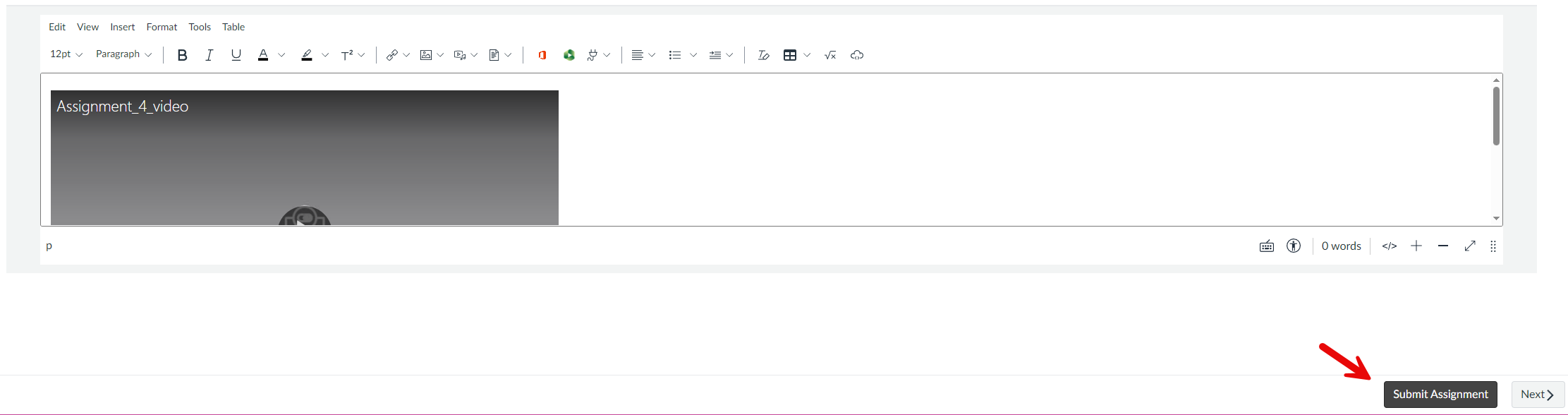
SDI uses Panopto Video in your course to manage video uploads and submission to assignments. Your instructor isn't able to see your video library, you will need to submit the video from Panopto to the assignment.
Follow these steps to successfully submit your video assignment:
1. Open the assignment
2. Scroll down to the bottom of the page until you see the assignment submission box 
3. Select the green Panopto Video icon 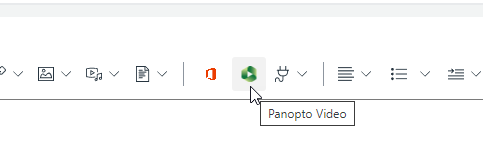
4. The Panopto Video window will open: 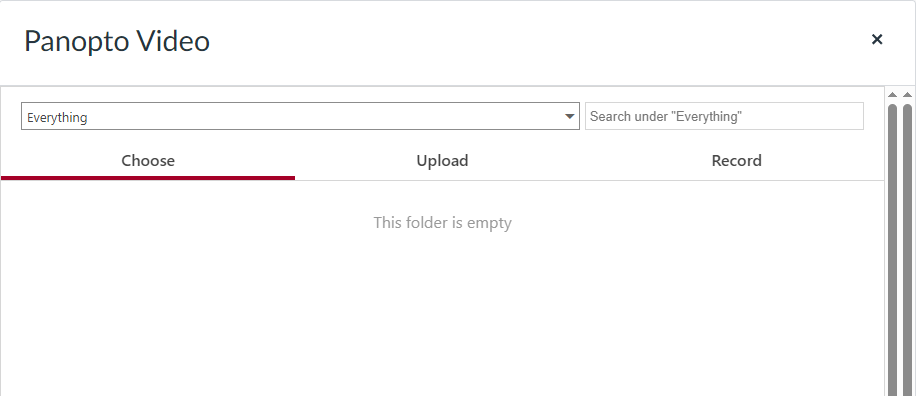
If you have already uploaded your video from the Panopto Video link from the left-hand navigation bar, you will see your video here and just need to select it. Skip down to step 5 to finish submitting the assignment.
If you have not uploaded your video yet or do not see it under the Choose tab:
a. Select the Upload tab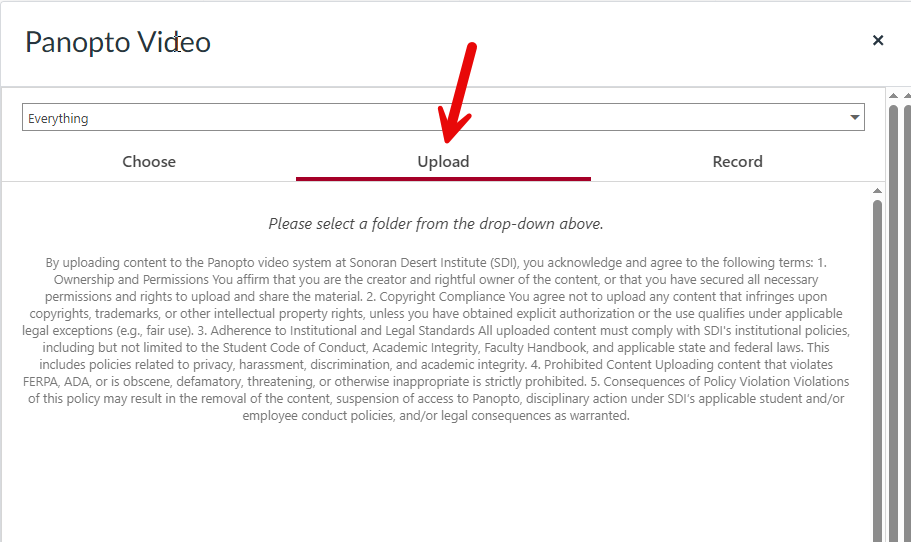
b. Click the drop down arrow and find the class folder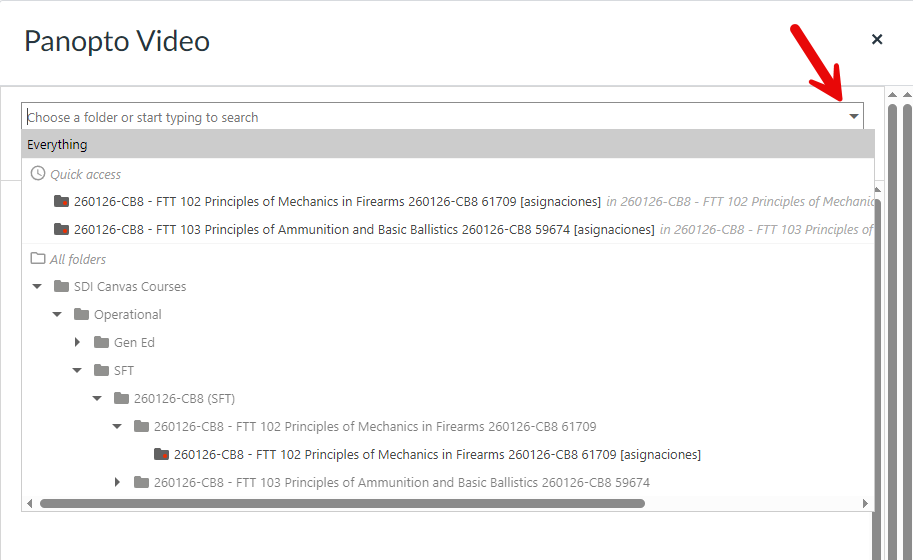
c. Drag your video from your computer into this window:
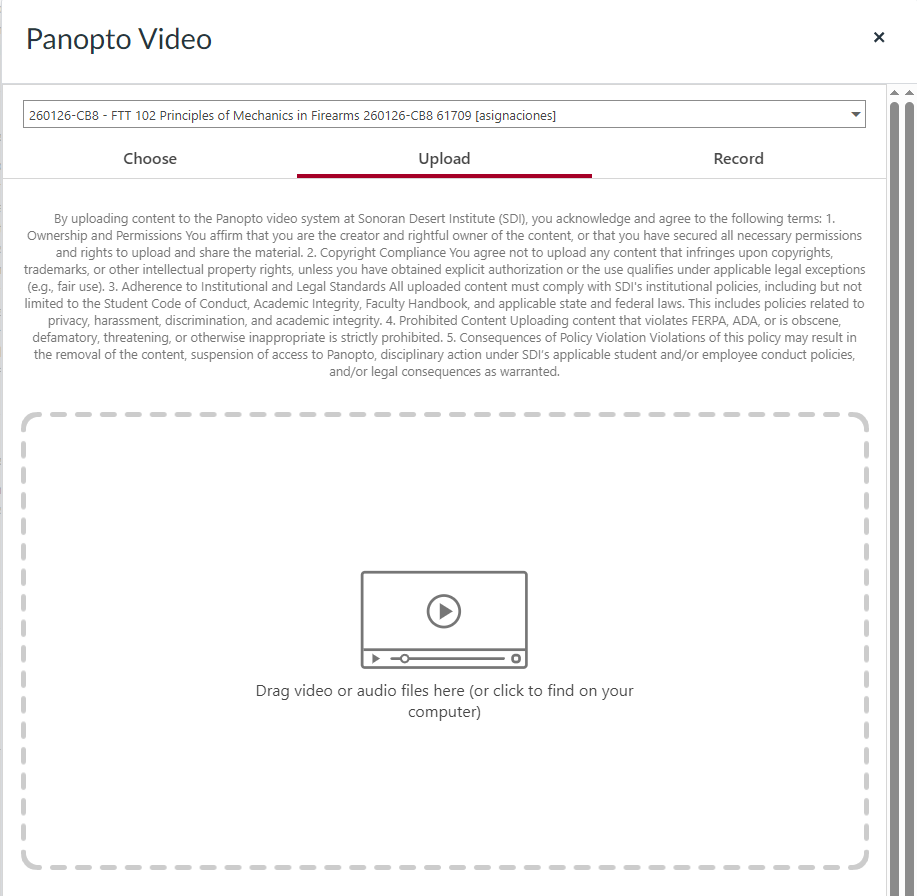
(Note: If the drag and drop isn't working, you can click inside the dotted lines and will get a file select window where you can find and select the video from your computer)
d. The upload will take a few minutes to process depending on the speed of your internet connection, wait until you see the green checkmark
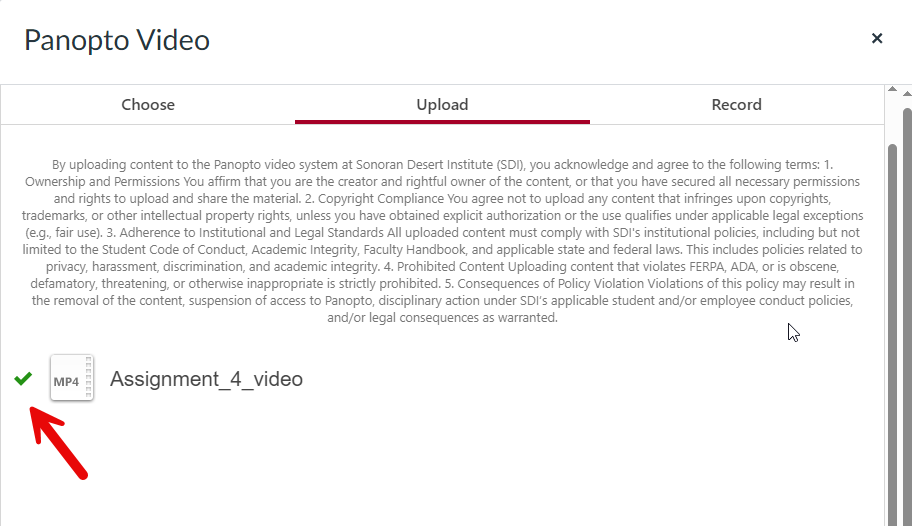
5. After you've selected the video you want to submit, click the Insert button
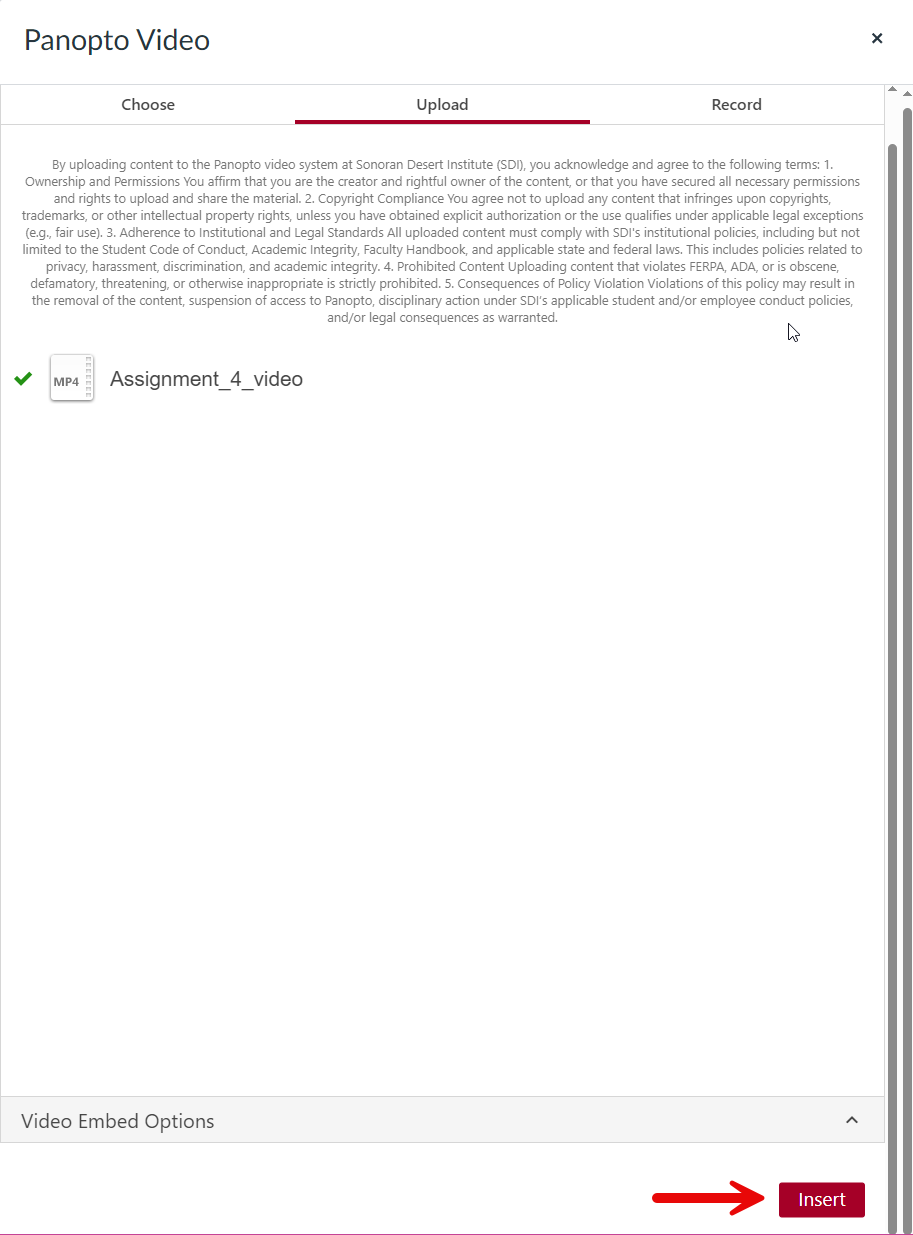
6. You will see your video in the assignment submission box. Click Submit to complete your assignment submission.