Panopto Walkthrough
The first step to successfully upload a video to Panopto is making sure you have the video on your laptop or desktop computer. If you recorded the video on a smartphone or separate camera, it is best to transfer the video to your computer and save to a location you’ll remember (ex: your desktop or a specific folder with your video recordings)
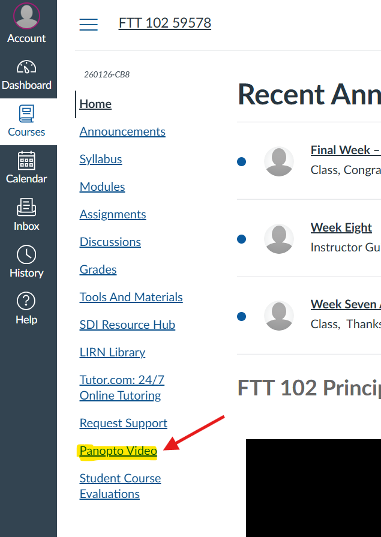
From here, you will log into the Canvas Online Classroom and select the course in which you’d like to submit the video. For this example, we’ll be using the FTT 102 course. Once you’ve clicked on the course, you will then click on the Panopto Video link in the bottom left
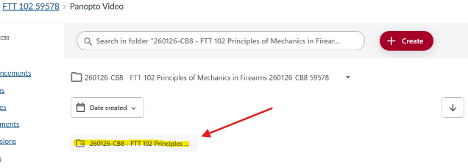
Next, you will click on the folder that says FTT 102 (the numbers at the beginning indicate the start date of the course)
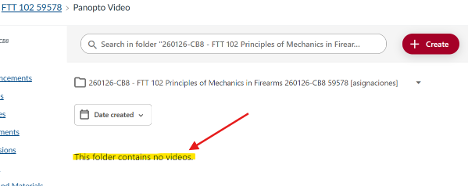
Your screen should then say “This folder contains no videos.” This simply means no videos have been uploaded to Panopto yet under this specific folder, but the next steps will show how to upload a video
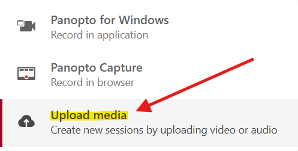
From here, you will click on the +Create button and select “Upload Media”
 .
. 
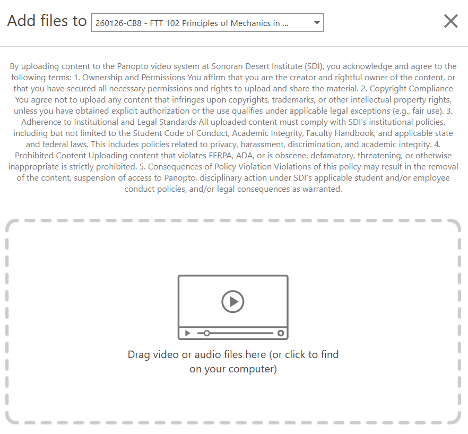
You will then receive this screen where you can drag your video or click on the box to search.
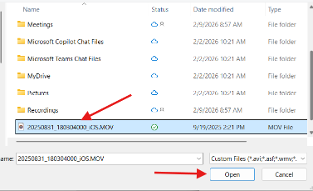
Once you’ve located your video, simply click on the video to highlight it and then click Open
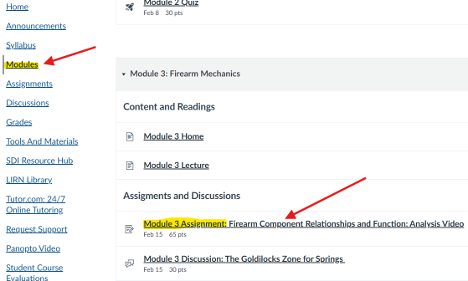
The video will then begin uploading from your computer directly into Panopto. Please be mindful this can take 5-10 minutes depending on the size of the file. Once uploaded, it can take additional 3-5 minutes for the video to process. After this step, you’ll then click on the assignment to submit the video. One of the easiest ways to do so is clicking Modules on the left side of the screen and then scrolling down to the assignment. For this example, we’ll use Module 3 Assignment: Firearm Component Relationships and Function: Analysis Video
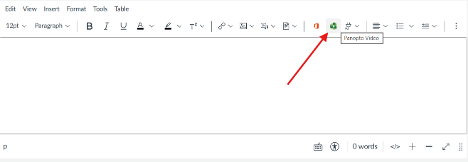
You will then scroll to the very bottom of the page where you’ll see a textbox. You will then click on the green Panopto icon
*If you do not see the Panopto icon, you may need to click on three lines on the right side of the textbox to expand the options, which should show the Panopto icon*
From here, you should then see a screen that shows the video that was uploaded to Panopto. You will click the bubble next to the video to select it and then click Insert on the bottom right. You should then seen your video appear in the textbox. You’ll then click Submit Assignment to submit your video.